
Description
This guide outlines the basics of navigating a *nix directory structure. Everything is a file in Linux, from directories to physical disk mounting points. All files consist of a filename, file contents, permissions and other properties. Files can be symbolically linked to other files via hard and soft links. We’ll use commands to list directory contents and to move around the file system. The commands used in this guide don’t represent their complete abilities.
Finding a Bearing
In order to navigate a file system, you must first determine what your current working directory is. A working directory is the directory you’re working out of and serves as a point for which relational references are made. Depending on the system you’re using, it’s likely that your current user name, hostname and working directory are printed at your prompt. This is handy for quick reference, but there are ways of determining these values via built-in Bash commands and there’s also ways of modifying your user’s shell prompt, though this is outside of the scope of this guide.
- pwd – Prints your working directory
- hostname – Prints the hostname of the host commands are being executed on
- whoami – Prints the $USER variable of the entity executing the command

ls
The ls command lists the contents of the specified directory. When issued without any options, the ls command lists the contents of your working directory with the files being sorted alphabetically and with files prefixed with a period being hidden from the output.




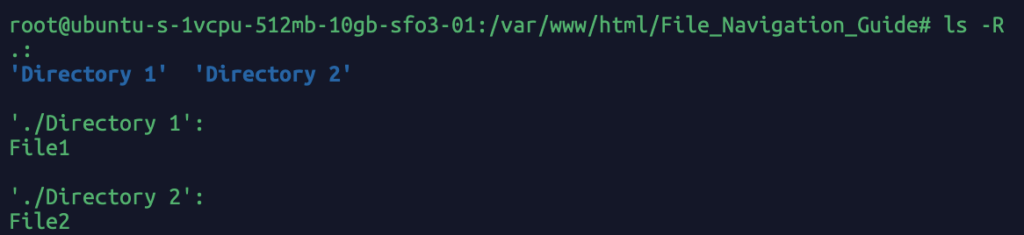
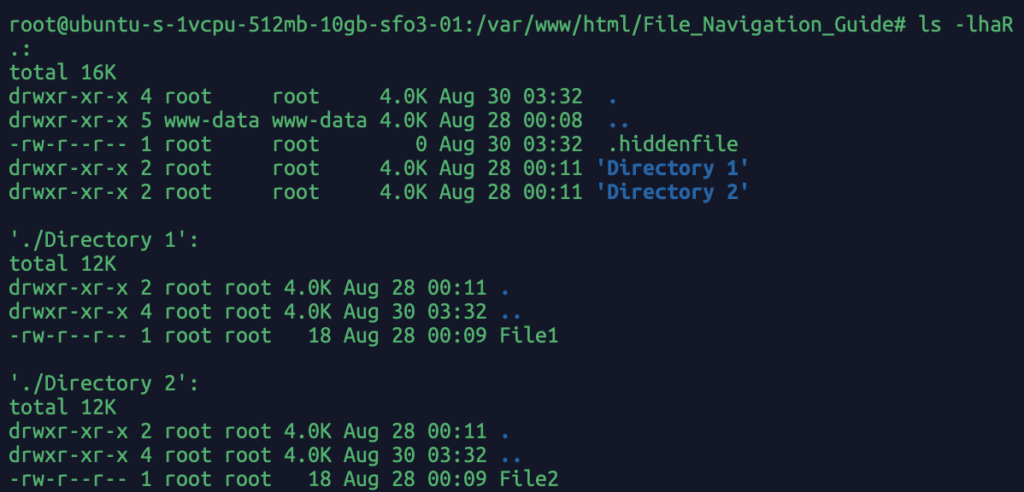
tree
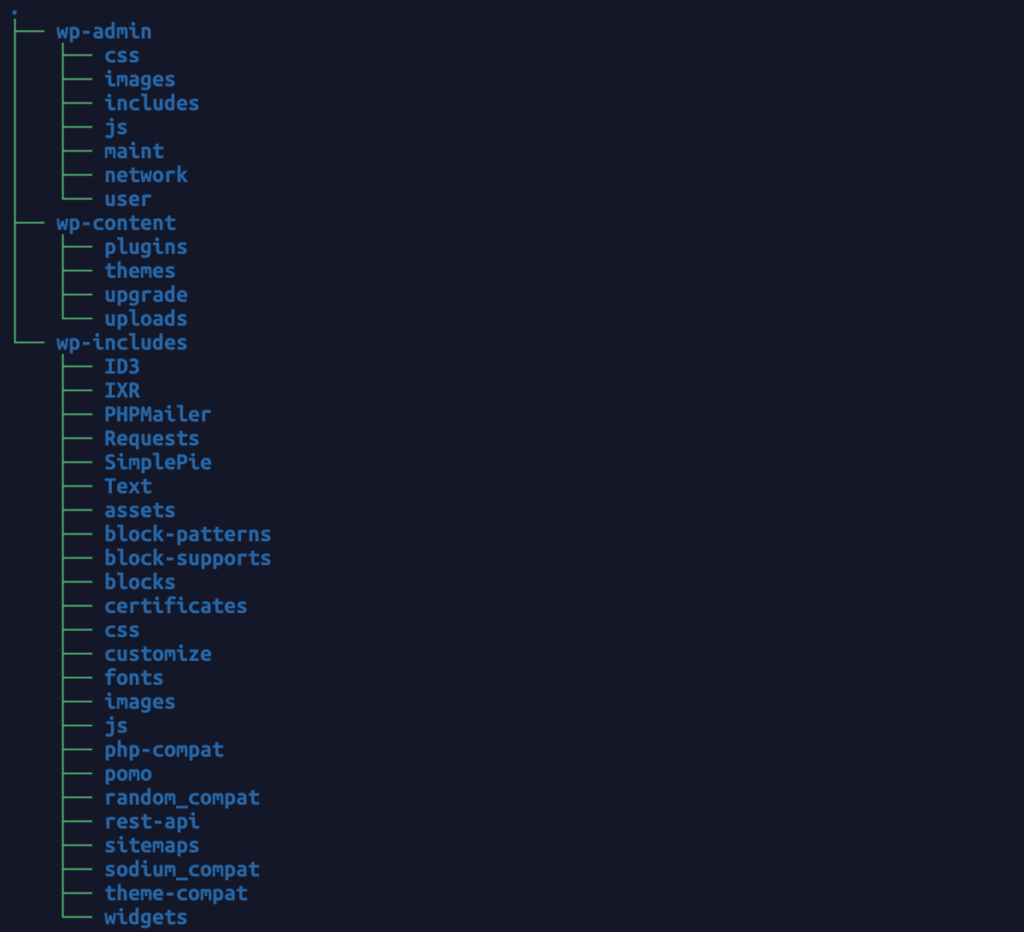
The tree command is a great way of visually representing a directory structure in a terminal window. This is particularly useful to obtain a high level overview of a directory structure and is easier to read than ls -R. When issued without options, it’ll print directories, files and subdirectories recursively.

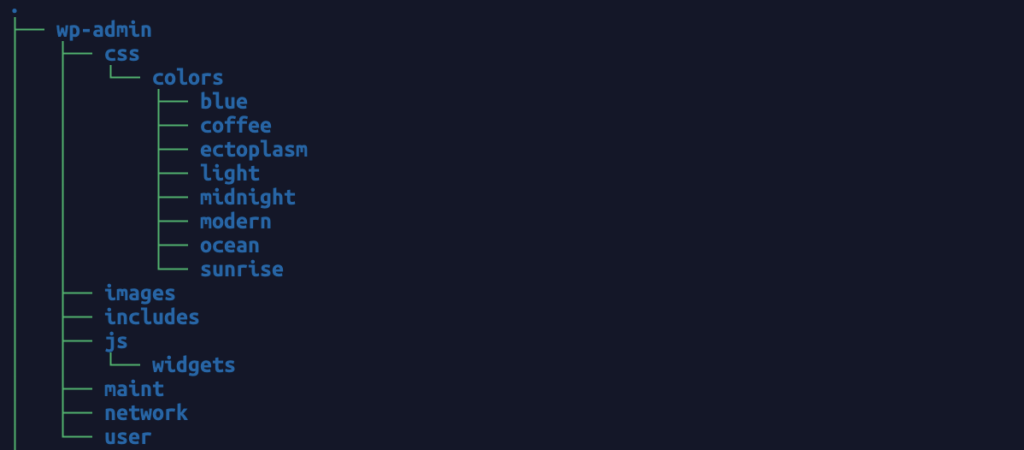
The -L n option, where n is any positive integer, displays files recursively with a depth of n levels. Here’s a couple of examples.

Traversal
When working in a *nix file system, it’s not always necessary to change your working directory as you can always specify a file path with commands. It is most useful to change your working directory if you will be performing many duties in a particular directory, as you can make use of relative paths, like .(current directory) ./(current directory) ../(parent directory).
cd
This command is short for change directory and allows you to change your working directory. In order to use it, you issue the command followed by your target directory. You can use either an absolute or relative pathname.
An absolute pathname starts at the root of the system. A relative pathname starts at your working directory. A single period denotes the working directory but its inclusion is not always necessary to have this effect. It’s also possible to specify parent directories with a double period.



This article’s content is incomplete
Leave a Reply