
Description
Many VPS providers will provide some sort of ability to create, manage and configure cloud firewalls. This guide will walk you through creating a very basic firewall configuration for a publicly available server. The idea is to limit inbound traffic to port 80 and 443 for web services and 22 for SSH administration. Outbound traffic is not restricted. It’s worth noting that setting up a reverse proxy server or a bastion host is ideal as it adds a layer of security between your local host and the remote host.
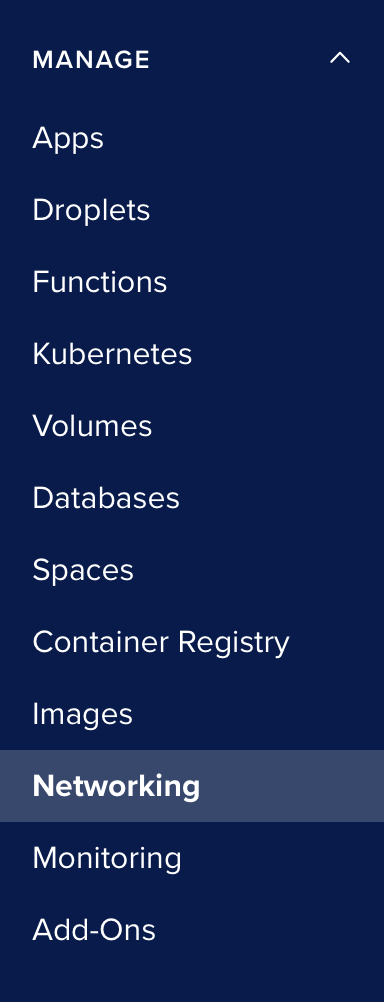
Firewall Creation
Inbound Rules
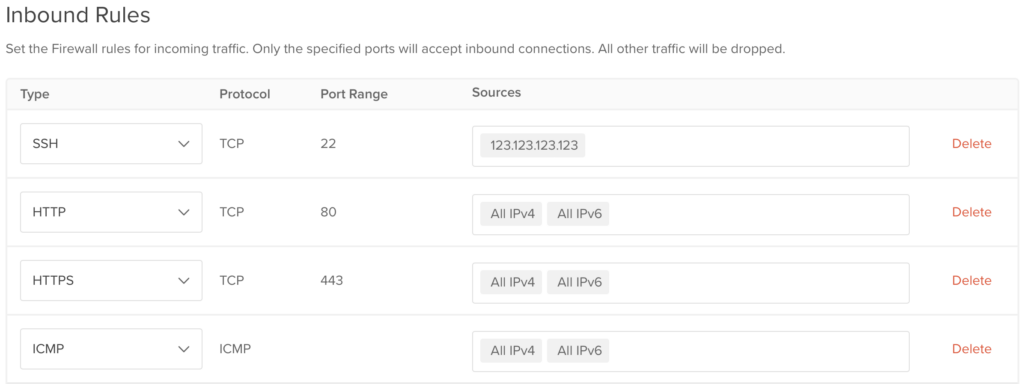
For inbound rules, we’re specifying an IP address for the source, for the purpose of managing the server remotely. If using custom ports, be sure to reflect this fact in your setup. Also, be sure to use the routable IP address of your local host here so that way traffic isn’t blocked.
We’ve also enabled an HTTP and HTTPS rule from all IP addresses. If you need to restrict access, like for developmental purposes, you can specify your source IP here as well.
Finally, we set a rule for the ICMP protocol which is what ping uses. This isn’t necessary though, with a web server it’s common to be able to just check for an HTTP request error to determine the server’s online status.
Outbound Rules
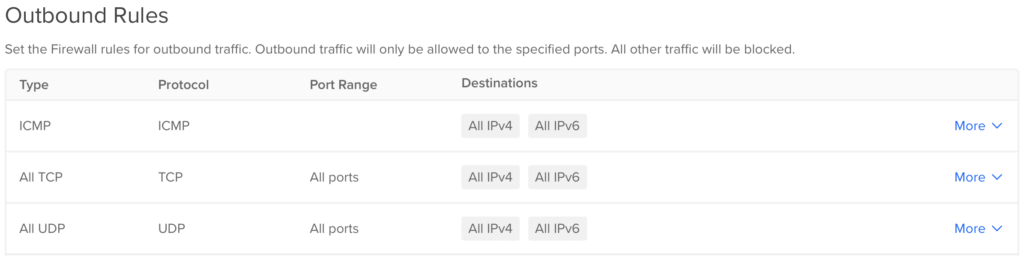
Since we set ICMP in inbound rules, we should set it in outbound rules so that we get a reply. We’ve also enabled all TCP and UDP traffic from all ports to all IP addresses. This means outbound traffic is unrestricted.
Apply Firewall to Droplet

Search for your droplet and add it to the list, then click the Create Firewall button.
Summary
Creating firewall rules within DigitalOcean is simple and this guide outlines a basic configuration. With the addition of a reverse proxy server, bastion host, internal firewall settings and traffic redirection, you can achieve a more robust setup. Cloudflare offers a lot of security related features such as bot detection and anti data scraping.
Leave a Reply